WordPress Website Hacked or Infected
Important steps when a WordPress website shows malware, unknown files, redirects, or unauthorized users.
Unexpected redirects, unfamiliar administrator accounts, or malware warnings need a careful response. Preserve logs and a current copy before cleaning so you can investigate how access was gained.
What to check first
- Preserve logs and a current copy for investigation
- Change important credentials from a trusted device
- Identify the entry point before declaring the site clean
What to do next
Remove malicious code, update vulnerable software, rotate credentials, and check files, database entries, and scheduled tasks. Then request any necessary review from affected search or security services and monitor for reinfection.
Preserve evidence before cleaning
Document redirects, warnings, unfamiliar administrators, and changed content. Save logs and a current copy before deleting files. An infection can affect the database, uploads, or scheduled tasks as well as visible pages. Take account access seriously if business email or customer data may also be affected.
Close the entry point
Compare the installation with a trusted copy, remove malicious changes, rotate credentials, and address vulnerable software or access. Restoring an older version without closing the route in can lead to another infection. Check forms and redirects after cleanup, including for visitors who are not logged in.
Verify recovery
Work with the host on any suspension requirements and request reviews where a security warning remains. Monitor the site for new suspicious files or users. A clean homepage alone is not sufficient evidence.
Can a plugin scan prove the site is clean?
A scanner helps find clues, but logs, access, files, database content, and the original cause also need review.
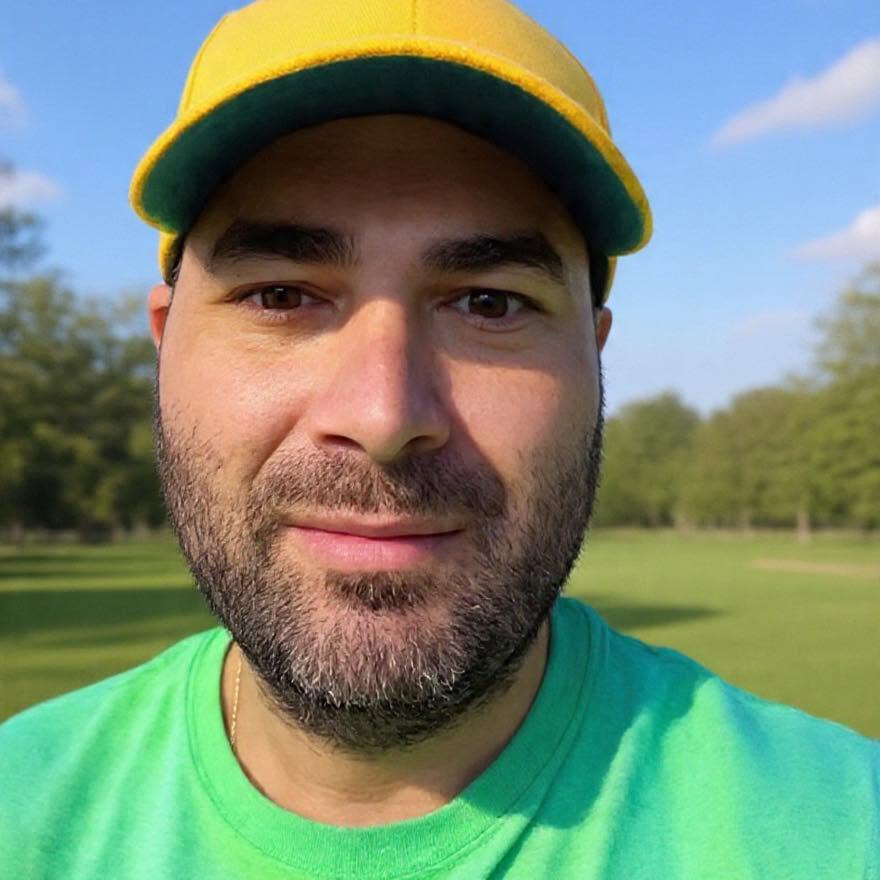
ABOUT GREG
Greg Grigorian
Greg is a Long Island webmaster with more than two decades of experience in website design, development, repair, WordPress, hosting, and ongoing website management. Clients work directly with the person investigating and completing the work.